
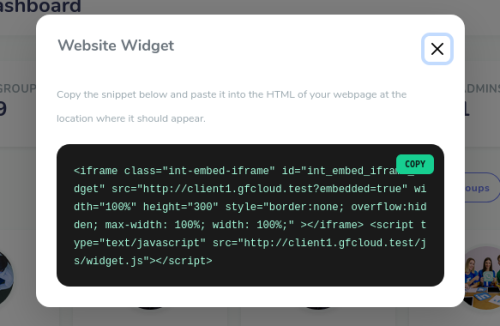
If your organization has an existing website, you can embed your GForce portal directly into your web pages!
Follow these steps to get started:
Step 1: Get the GForce Widget Code
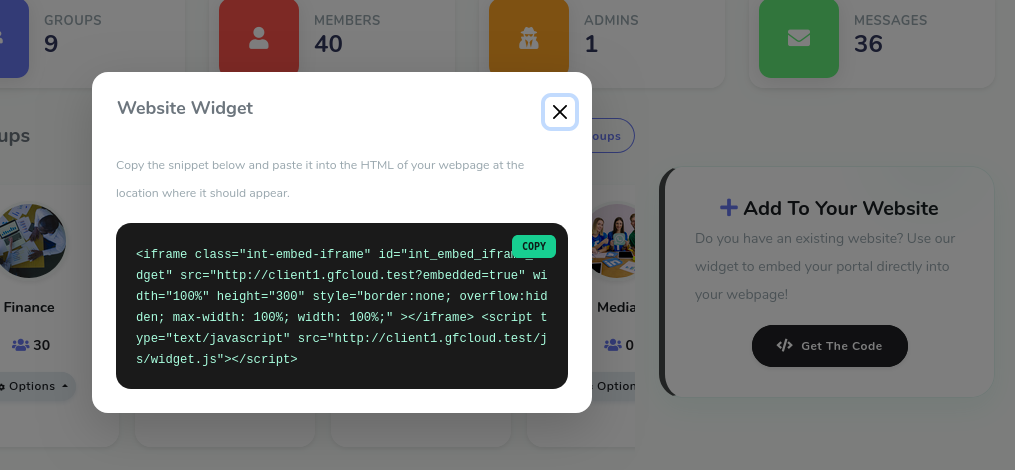
Log in to your GForce admin dashboard.
On the right-hand side, click on the Add To Your Website widget.
Click on the Get The Code button.
Click on the Copy button to copy the code to your clipboard.
Step 2: Add the Code to Your WordPress Website
Log in to your WordPress website's admin dashboard.
Go to the page where you want to add the GForce widget.
Click on the Edit Page button.

Click on the + (Block Inserter) button.
Search for and select the Custom HTML block.

Paste the GForce widget code into the Custom HTML block.
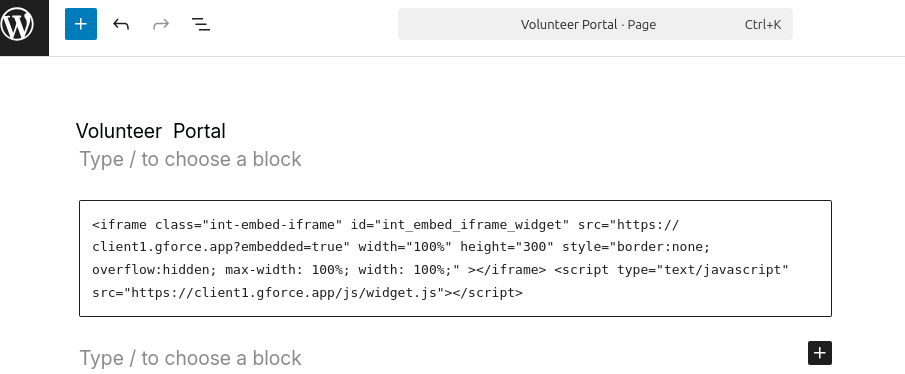
Click on the Save button.
Step 3: View the GForce Widget on Your Website
Click on the View Page button to see the GForce widget on your website.
The GForce widget is now embedded on your website, and your volunteers and site visitors can access your portal without having to leave your website.